


cTrader Desktop 4.0 Offers Active Charts, New Hotkeys & Smart Chart Search
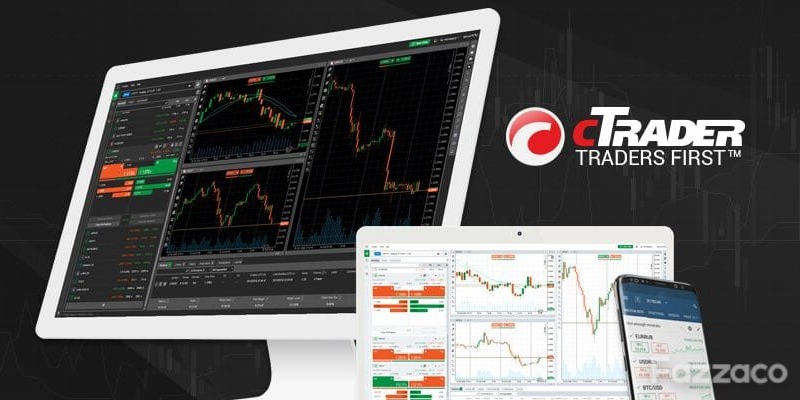
Spotware Systems, an award-winning neutral financial technology provider, has announced the release of its cTrader Desktop 4.0 version, which comes with several valuable features including Active Charts in conjunction with an increased range of hotkeys, a smart chart search, as well as a functionality to copy/paste chart drawings.
The new version provides fundamental and technical analysis with FXStreet News and Autochartist, respectively. The convenience features include the ability to deposit and withdraw funds to/from Demo accounts, ability to duplicate charts, expand/collapse symbol tiles, chart keyboard events in API, as well as API changes for drawing events, chart activation/deactivation and more, unveiling an entirely new level of trading experience.
Hotkeys for Active Charts
Some of the new hotkeys simplify the most common tasks in cTrader and others bring new useful features. You can find the list of all hotkeys and change default assigned keys in settings.
- Space - Open Smart Chart Search
- Ctrl + C, Ctrl + V, Ctrl + X - Copy, paste and cut chart drawings
- Ctrl + Tab, Ctrl + Shift + Tab - Switch between charts
- Ctrl + Q - Show/hide side menu on the left
- Ctrl + W - Show/hide Tradewatch at the bottom
- Ctrl + E - Show/hide Active Symbol Panel on the right
- Ctrl + N, Ctrl + Shift + N - Open new chart, attached or detached
- Ctrl + D, Ctrl + I - Open Object Manager on Drawings or Indicators tab
- Ctrl + A - Select all drawings
- Ctrl + H - Hide/show all drawings
- F1 - Open Help Center
- Shift + Drawing - Constrained drawing: 45 degrees for lines, rectangle, or circle
- Ctrl + Drawing - Keep drawing instrument selected after finishing with drawing
Smart Chart Search
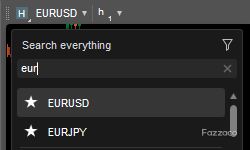
Smart Chart Search is a new and quick way to alter symbols and periods, add cBots and indicators, or apply chart templates.
Press Spacebar to start typing, then use Down and Up keys to select an item and press Enter to apply changes.
Copy and Paste Chart Drawings
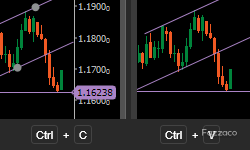
Use Ctrl + C and Ctrl + V to copy and paste drawings between charts. Drawings are copied as a JSON formatted text, so you are free to share them with others.
FxStreet News integration
The addition of FXStreet's latest news and trading updates that can be found on the ASP (Active Symbol Panel), ensures traders stay on top of market opportunities in real-time, without leaving their trading space. For further convenience, the news page is separated into General and Crypto, so one can focus on their market of interest with ease.
Autochartist
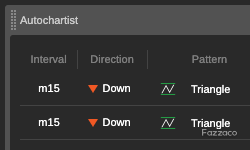
The Autochartist Market Analysis tool can help you make more informed trading decisions, get acquainted with different technical analysis concepts, and gain extra validation of your own analysis.
Autochartist identifies potential trade opportunities using Chart Patterns, Fibonacci patterns, and Key Levels. The analysis is generated per symbol, for a timeframe as low as 15 minutes, providing you with a graphical illustration and information on the direction of potential price movement along with the forecasted price.
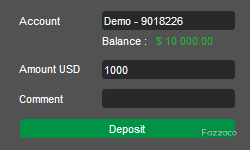
Deposit and withdrawal to/from Demo accounts
The ability to deposit and withdraw funds to/from demo accounts allows users to observe the real-life trading picture, as opposed to the usual demo funds option.
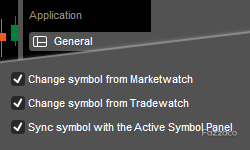
Active Chart Settings
You can configure to change the symbol in Active Charts from MarketWatch or TradeWatch. Additionally, you can sync Active Charts with the Active Symbol Panel for maximum convenience.
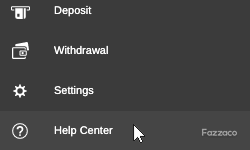
Help Center
The Help Center, located in the bottom left corner of your platform, combines Help Guides, What's New, cTrader.com, Open API, Useful Links, Contact and About cTrader, in a single place for your convenience.
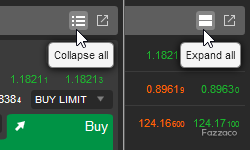
Expand/collapse symbol tile
You can easily transform a symbol list into tiles in Market Watch. To expand/collapse a single symbol item, select the corresponding item in the right-click menu.
Duplicate chart
You can now fully duplicate a chart with the exact symbol, drawings, indicators, and settings by selecting Duplicate in the right-click menu.
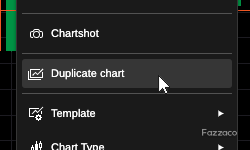
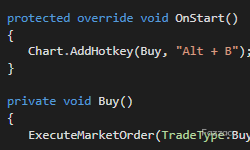
Chart Keyboard Events in API
cBots and custom indicators can now handle keyboard events and assign custom hotkeys.
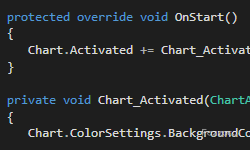
API for handling chart activation/deactivation
Only an active chart will get keyboard and custom hotkey events. New API allows tracking when a chart is activated or deactivated.
API changes for drawings events
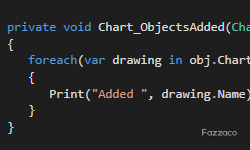
With the introduction of multiple selected drawings, the following events have changed:
ObjectAdded, ObjectUpdated, ObjectRemoved, ObjectSelectionChanged.
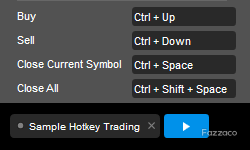
Sample Hotkey Trading
A new cBot sample was added to demonstrate hotkeys API. With this cBot you can send market Buy and Sell orders, as well as close positions using configurable hotkeys. It can be used with Visual Backtesting for manual strategy testing.
 Subscribe Now