


Running MetaTrader on macOS: Challenges and Solutions

This article is brought to you by Fozzy: we help macOS users to trade 24/7 with the power of VPS.
MetaTrader is a popular trading platform used all over the world. It is available on both macOS and Windows operating systems, but there are some differences between the two platforms.
Platform technology
There is no native MetaTrader version for macOS: the platform was not originally designed to work on Apple computers. Instead MetaQuotes recommend running it with Wine, either through CrossOver or PlayOnMac.
Wine is a free software that allows users of the Unix-based systems (macOS is one of such systems) to run an application developed for the Microsoft Windows. It emulates some Windows components required to run Windows-based apps, but that comes with a performance trade-off (see below). Wine is not a fully stable solution, thus, some functions in the applications you start under it may work improperly or not work at all.
The MetaTrader package for macOS already includes a commercial version of Wine – CrossOver. You don't have to install that separately: just drag the MetaTrader application icon from the installation package into your Applications folder, as you do with other macOS apps.
If you don't want to use the built-in Wine (CrossOver) emulation to run MetaTrader, MetaQuotes also support PlayOnMac. This method requires you to download, install, and configure a separate piece of software. One of the benefits of PlayOnMac is that this utility allows you to choose what version of Wine you want to use and that might help with compatibility issues should you occur any.
To install PlayOnMac, follow the guide from the official MetaQuotes documentation.
Performance
Another difference between the macOS and Windows versions of MetaTrader is their performance. MetaTrader works fluently on Windows as the platform was developed specifically for this operating system. Performance on Windows is perfect, and users can access all features without any hassle.
On macOS, due to the additional emulation layer, the performance may not always be flawless. Some users report slower processing times, minor bugs, or graphical issues. However, most traders do not face any major hindrance while using the platform, and improvements have been made over time to optimize the performance on macOS.
Update and support
It's not uncommon for software providers to prioritize updates and technical support for their primary platform. In the case of MetaTrader, Windows users receive the most frequent updates and prompt technical support.
Although there has been a steady rise in macOS users over the years, MetaTrader updates and technical support tend to be a bit slower in comparison to Windows. However, community support for macOS users has grown, and MetaQuotes is also putting effort into maintaining compatibility with macOS.
Debugging
Debugging is critical for MQL developers because it allows for quick and efficient identification of issues in the code. Without properly functioning debugging tools, developers may struggle to find and fix errors in their code, leading to delays and frustration.
One of the key features of the MQL programming language is its extensive debugging capabilities, which provide developers with the ability to track and examine their code during execution. MQL4 debugging tools allow developers to set breakpoints at specific lines of code, step through the code line by line, monitor the value of variables, display the values of any data structure in memory, and much more. By using these tools, MQL developers save hours of time and frustration, as well as improve the quality and efficiency of their code.
Starting debugging is slightly more difficult on macOS than on Windows: On Windows you just click the debug button, and it automatically switches from Editor to Terminal, and after that comes back to the first break point, but on macOS that doesn't happen automatically.
To enable debugging on macOS:
Open MetaTrader and go to the terminal window (either by clicking on the MQL4 button in the upper left corner of the MetaTrader window or by selecting "MQL4" from the dropdown in the "Settings" menu).
Type the following command in the terminal window: "debug on".
Now the debugger is enabled and ready to use. You can use it to set breakpoints, step through your code line by line, and view the values of variables and other data structures in memory.
DLL import
DLL import is crucial for MQL developers. Although the process is similar on both platforms, it is not identical.
Here are the steps for importing DLL file on Windows:
Place the DLL file you want to import into the folder where you have installed MetaTrader.
Open the platform and go to the "File" menu. Select "Open MQL4 Terminal" to open the MQL4 development environment.
Type the following command in the terminal window: "import *<name-of-the-dll-file.dll>". This command will import the DLL file.
Once the DLL file has been imported, you should be able to use the functions it contains in your MQL scripts.
To import a DLL file on macOS:
Place the DLL file you want to import into the folder where you have installed MetaTrader.
Open the Terminal application on your macOS system and navigate to that same folder.
Type the following command in the Terminal window: "mq4 -import *<name-of-the-dll-file.dll>".
Once the DLL file has been imported, you should be able to use functions it contains in your MQL scripts.
Expert Advisor DLL compatibility
A DLL issue you might occur as a regular user of MetaTrader platform on macOS is that some Expert Advisors require external DLL files. And those files might use Windows functions not implemented in Wine yet or implemented in a different way.
This issue you cannot fix on macOS – you must use a Windows system.
Even if you don't have a Windows computer, you still have some options available:
You can run a Windows virtual machine on your Mac. The most user-friendly software for that is Parallels Desktop, but that's a paid application. Free software is also available: VMware Fusion Player and Oracle VM VirtualBox.
Just rent a Windows VPS from a reliable provider in a datacenter.
The downside of the first option is that it uses your computer resources to run another full operating system – it will consume your computer's resources at affect all applications on your Mac. You also must purchase a copy of Windows to run on that virtual machine.
The second option is beneficial in several ways:
A VPS in a datacenter does not consume your computer's resources.
You don't have to purchase Windows – the license is provided by your hosting service.
If you choose a datacenter close to your broker's servers, you will benefit from low network latency and your orders will execute faster.
You don't have to keep your computer running 24/5 for expert advisors to work – now they run in a datacenter, not consuming your electricity or bothering you in any way.
News tab problem
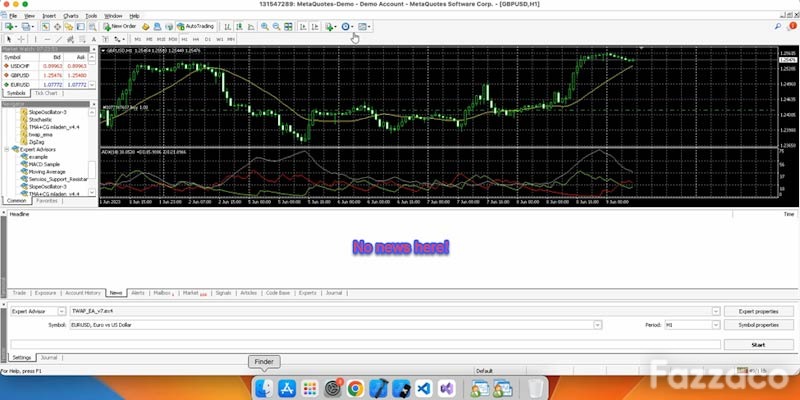
On macOS sometimes you might find the News tab completely empty even though there should be data. But there is a way to fix this:
Make sure you are connected to the Internet and that the news channel has been enabled. To enable the news channel, go to the "Terminal" panel, then right-click on the header bar, select "Settings", and under the "Terminal" section, make sure that "Enable news" is checked.
Try clearing the MetaTrader cache by going to the "Clear" menu, selecting "Clear Terminal and Cache", and then restarting the platform. This will clear any temporary files and may resolve the issue.
If you are still having issues, try restarting your computer or reinstalling MetaTrader. Sometimes, a fresh installation can resolve issues with the platform.
F1 function key might not work on macOS
If the F1 key doesn't open the help window in MetaTrader on macOS, the issue may be related to the keyboard settings on your computer. Try the following steps to resolve it:
Go to the Apple menu in the top left corner of your screen and select "System Preferences".
Choose "Keyboard" from the list of preferences.
In the "Keyboard" preference window, make sure that "Use all F1, F2, etc. keys as standard function keys" is checked. If it is not checked, check it, and try using the F1 key again to see if that resolves the issue.
If the issue persists, try changing the key bindings in MetaTrader. You can do this by going to the "Tools" menu, selecting "Options", and then navigating to the "Shortcuts" tab. From there, you can change the shortcut for the "Help" command. Assign it to a different key combination and see if that helped.
Conclusion
Although designed specifically for the Windows system, it is still possible to use MetaTrader on macOS with a few extra steps and additional. While there may be some differences related to installation, performance, usage, and support, both Windows and macOS users can run the software.
But for the most seamless Expert Advisor experience it is better to stick with the Windows version of the trading platform. And if your home computer is made by Apple, the easiest and most beneficial way for you to get a Windows system might be just ordering a forex VPS from a provider closest to your broker servers.
This article is brought to you by Fozzy: we help macOS users to trade 24/7 with the power of VPS.
 Subscribe Now